)
)

)
The Appointment Tool is your personalized matchmaking and diary tool, designed to help you connect with the right buyers at the right time.
How it works
WC August 17
Hosted buyers gain early access to the Appointment Tool and can begin booking 1:1 appointments with exhibitors.
WC August 31
Access opens for all attendees - including visitors, buyer pass holders, and exhibitor staff. Messaging and meeting requests can begin with both hosted and visitor buyers.
⚠️ Appointments are person-to-person. Ensure your team is registered before hosted buyer access opens, or you won’t be able to receive meeting requests.
Key features & functionality
Intelligent discovery
-
Searchable and filterable attendee directory by:
-
Attendee type and meeting status
-
Product/service interest
-
Travel region, company size, traveler volume, and more
-
-
AI-powered matchmaking suggestions based on your activity
-
Favorite/bookmark attendees for follow-up
Real-time insights
-
Dashboard to monitor:
-
Profile completeness and visibility
-
Meeting requests and acceptance rates
-
Team performance and attendee interactions
-
Product views, likes, and engagement
-
Seamless scheduling
-
Assign meetings to the most relevant team member
-
View schedules in list or calendar mode
-
Sync with Outlook
-
Block out lunch, breaks, or away time
-
Download full schedules as Excel or PDF
Meeting ratings
-
Rate your meetings and gather feedback to refine future targeting
Bonus features (accessible via web & app)
-
Browse the full conference agenda and add sessions to your personal schedule
-
Explore the exhibitor list and interactive floor plan
-
Book accommodation directly within the platform
FAQs
If you are the stand admin, once you have logged into the platform, please head to the Register Your Staff page, which you'll find within the EXHIBITOR ZONE drop-down. You will be redirected to the Connect Visit dashboard, where you can register your team members.
As an exhibitor you can request meetings with hosted buyers and buyers. Go to the ATTENDEE LIST to browse the full list or narrow down your search by using the filters on the left-hand side. Select the calendar icon next to the profile, select the time and enter a subject line and message before sending your request.
Your request will appear in your diary as “pending” until a buyer either accepts or declines the meeting.
As this is a buyer lead program, requests from buyers are automatically accepted in your diary. Only buyers can cancel or reschedule meetings.
Any meeting requests you send will remain as pending until actioned by the buyer. Please note: pending meetings do not block out time in your diary, which means you can send multiple requests per time slot. The first person to accept the meeting will block the time, any buyer trying to respond to your invite will then be forced to reschedule the meeting before accepting.
Appointments are booked on a person-to-person basis. This means buyers select individual team members to meet with, not just your company. Make sure all exhibiting staff are registered in advance to ensure visibility.
Buyers can browse the exhibitor list to find companies they’re interested in meeting. To schedule a meeting, they’ll click the calendar icon next to the company profile. If they prefer to meet with a specific team member, they can select that person from the drop-down menu; otherwise, the system will assign the meeting to an available team member.
Buyers can also browse the attendee list and book meetings directly with a team member.
Yes - once access opens (WC August 31), you can message buyers directly within the platform.
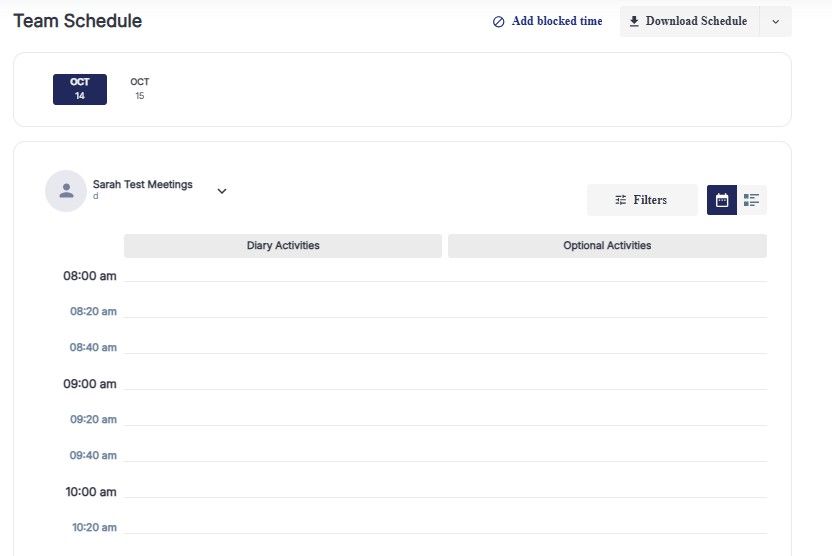
The appointment tool allows your company admin to view your team's calendar and easily reassign meetings to the most relevant person.
Select TEAM SCHEDULE from the top menu, you will then be able to view all of the meetings associated to the stand account. Next to each meeting you will see the "reassign meeting" button, click on this, reset, then tick the person it should be reassigned to then SAVE.
If you have no team members registered, buyers will not be able to book meetings with your company, so it’s really important to register your staff as soon as possible, if you are the stand admin. For each team member you register, a profile will be created in the platform. When registering your staff, you can also enable or disable their availability for meetings as required. If you have team members registered and cannot see the meetings function within your profile, please log out and refresh your browser, and perform a hard refresh by pressing Ctrl + F5 if the issue persists.
Scroll down to the bottom of your dashboard to view this information.
There is a section on the app called “Meeting Ratings”. Once a meeting has taken place you will be able go into this section add a rating, add comments and mark as not attended.
All hosted buyers are required to complete a minimum number of meetings. If they fail to do this they will incur charges, so it’s important for you to let us know if you have a no-show.
If you have any other queries, raise a support ticket and a member of our customer service team will get back to you shortly.
)
)
)
)
)
)
)
)